Python for Data Science: Chapter 2: Functions and Files
Python: Working with Files
Working with Files in Python: 1. Types of Files 2. Text Files 3. Reading from Files 4. Writing to Files 5. File Positions 6. Command Line Arguments 7. Binary File Handling: Reading Binary Data Format, Writing to Binary File
Working
with Files
Definition :
File is a named location on the disk to store
information.
File
is used to store the information permanently.
1. Types of Files
There
are two types of files
1.
Text file
2.
Binary file
1) Text file :
•
The text ASCII file is a simple file
containing a collection of characters that are readable to humans.
•
Various operations that can be performed
on text files are ‒ Opening the file, reading the file, writing to the file,
appending data to the file.
•
The text file deals with the text
stream.
•
In text file each line contains any
number of characters include one or more characters including a special
character that denotes the end of file. Each line of the text have maximum of
255 characters.
•
When a data is written to the file, each
newline character is converted to carriage return/ line feed character.
Similarly when data is read from the file, each carriage return feed character
is converted to newline character.
•
Each line of data in the text file ends
with newline character and each file ends with special character called EOF
(i.e. End of File) character.
2) Binary file :
• Binary file is a file which contains data
encoded in binary form.
•
This data is mainly used for computer
storage or for processing purpose.
•
The binary data can be word processing
documents, images, sound, spreadsheets, videos or any other executable
programs.
•
We can read text files easily as the
contents of text file are ordinary strings but we can not easily read the
binary files as the contents are in encoded form.
• The text file can be processed sequentially
while binary files can be processed sequentially or randomly depending upon the
need.
•
Like text files, binary files also put
EOF as an endmarker.
Difference between text file and binary file
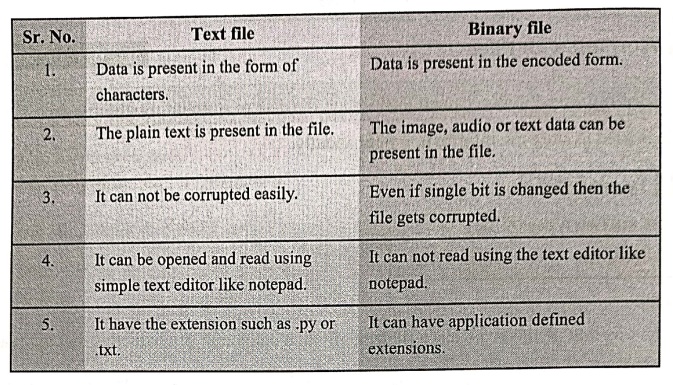
Text file
1.Data
is present in the form of characters.
2.
The plain text is present in the file.
3.
It can not be corrupted easily.
4.
It can be opened and read using simple text editor like notepad.
5.
It have the extension such as .py or .txt.
Binary file
1.
Data is present in the encoded form.
2.
The image, audio or text data can be present in the file.
3.
Even if single bit is changed then the file gets corrupted.
4.
It can not read using the text editor like notepad.
5.
It can have application defined extensions.
2. Text Files
•
The text files are types of files that
store textual information.
•
The text files are considered as
persistent storages. That means once you store data in a text file that remains
in it even‒if you shutdown and restart the computer. One can be picked up where
they left off.
•
Various operations that can be performed
on text files are :
1.
Open file
2.
Close file
3.
Writing to the file
4.
Reading from file
Opening a file
In
python there is a built‒in function open()
to open a file.
Syntax
File_object=open(file_name,mode)
Where
File_object is used as a handle to the file.
Example
inf=open("test.txt")
Here
file named test.txt is opened and
the file object is in variable inf
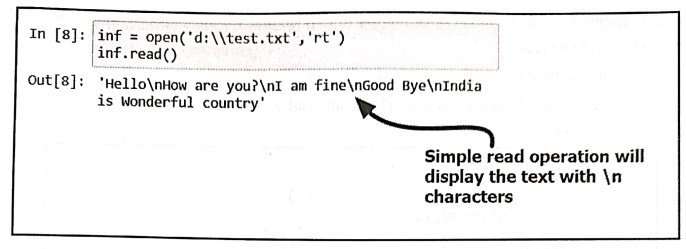
We
can open the file in text mode or in binary mode. There are various modes of a file in which it is opened.
These are enlisted in the following table ‒
Mode Purpose
'r'
‒ Open file for reading.
'w'
‒ Open file for writing. If the file is not created, then create a new file and
then write. If file is already existing then truncate it.
'x'
‒ Open a file for creation only. If the file already exists, the operation
fails.
'a'
‒ Open the file for appending mode. Append mode is a mode in which the data is
inserted at the end of existing text. A new file is created if it does not
exist.
't'
‒ Opens the file in text mode.
'b'
‒ Opens the file in binary mode.
'+'
‒ Opens a file for updation i.e. reading and writing.
For example
fo=open("test.txt",w) #opens a file
in write mode
fo=open("text.txt",rt) #Open a file
for reading in text mode
Closing a file
•
After performing all the file operations, it is necessary to close the file.
•
Closing of a file is necessary because it frees all the resources that are
associated with file.
Example
fo=open("test.txt",rt)
fo.close() #closing a file.
3. Reading from Files
For
reading the file, we must open the file in
r mode and we must specify the correct file name which is to be read.
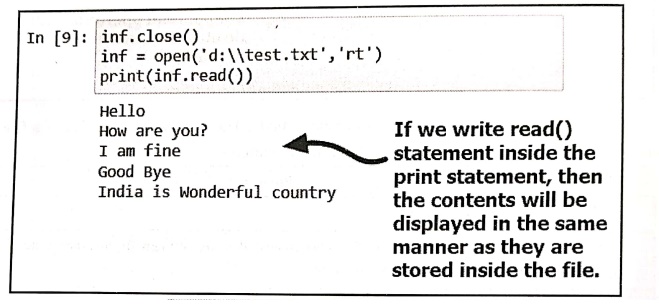
The
read() method is used for reading
the file. For example ‒
Let
us close this file and reopen it. Then call read statement inside the print
statement, illustrated as follows –
Example:1
Write a
Python program to read the contents of the file named 'test.txt.
Solution :
ReadFile.py
inf = open('D:\\test.txt','rt')
print(inf.read())
inf.close()
Output
In [10]:
import
ReadFile
Hello
How are you?
I am fine
Good Bye
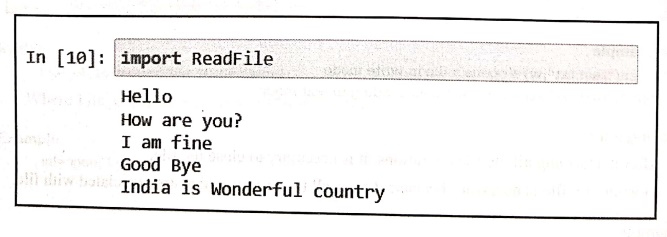
Note
that a blank line is returned when the file reaches the end of the file.
There
are some other useful methods for reading the contents of the file. Let us
discuss them with the help of necessary illustrations.
The readline() method
The
readline() method allows us to read a single line from the file. When file
reaches to the end, it returns an empty string.
Example:2
Write a
Python program to read and display first two lines of the text file.
Solution :
ReadLineDemo.py
inf = open('D:\\test.txt','rt')
print(inf.readline())
print(inf.readline())
inf.close()
Output
Hello
How are you?
Program explanation: In above program,
1)
The file is opened using open
statement.
2)
The we call readline() statements
inside two subsequent print statement. After reading from the file using the readline() method, the control
automatically passes to the next line. Hence we call readline() inside the print
statement again.
3)
Finally we must not forget to close the file using close() method.
The readLines() method
The
readLines() method is used to print
all the lines in the program. Following program illustrates it ‒
ReadLines Demo.py
inf = open('D:\\test.txt','rt')
print(inf.readlines())
inf.close()
Output
Hello
How are you?
I am fine
Good Bye
India is Wonderful
country
The list() method
The
list method is also used to display the contents of the file as a list. The
program is as follows‒
ListDemo.py
inf = open('D:\\test.txt','rt')
print(list(inf))
inf.close()
Output
In [11]: import ListDemo
['Hello\n', 'How are
you?\n', 'I am fine\n', 'Good
Bye\n', 'India is
Wonderful country']

Note
that we passed the file object as an argument to the list method.
Displaying file using loop
This
is the most commonly used method of reading the file. In this method the
contents of the file are read line by line using for loop.
Example:3
Write a
program to display the contents of the file using for loop.
Solution :
DisplayFile.py
inf = open('D:\\test.txt','rt')
for line in inf:
print(line)
inf.close()
Output
Hello
How are you?
I am fine
Good Bye
India is Wonderful
country
Opening a file using with
We
can open the file using keyword with.
The advantage of this is that the file gets closed properly after the read or
write operations.
OpenWithDemo.py
with open('D:\\test.txt', 'rt') as inf:
for line in inf:
print(line)
inf.close()
Output
Hello
How are you?
I am fine
Good Bye
India is Wonderful
country
Example:4
Write a
Python program to find the line that starts with the word "This" from
the following text which is stored in a file.
Test.txt
This is a Python program
Python is superb.
This is third line of program
this Python program is nice
Solution :
FileDemo1.py
fh=open('d:\\test.txt')
i=0
for line in fh:
line=line.rstrip()
if
line.find("This')= = ‒1:continue
print(line)
Output
This is a python
program
This is third line of
program
Example:5
Write a
program in Python to split the text line written in the file into words.
Solution :
with open('d:\\test.txt','rt') as inf:
line=inf.readline()
word_list=line.split()
print(word_list)
Output
['This', 'is', 'a',
'python', 'program']
4. Writing to Files
For
writing the contents to the file, we must open it in writing mode. Hence we use
'w' or 'a' or 'x' as a file mode. The write
method is used to write the contents to the file,
Syntax
File_object.write(contents)
The
write method returns number of bytes written. While using the 'w' mode in open,
just be careful otherwise it will overwrite the already written contents. Hence
in the next subsequent write commands we use "\n" so that the
contents are written on the next lines in the file. For example :
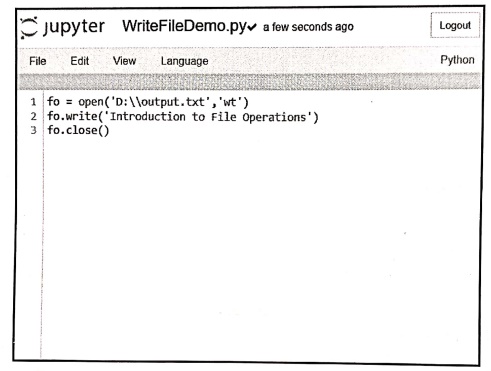
Step 1:
Create a python program in a file in which the file named output.txt is created and opened up for writing purposes. Write
some contents to this file. Following screenshot illustrates this Python
program ‒
Step 2:
Run the above file
In [12]:
import WriteFileDemo

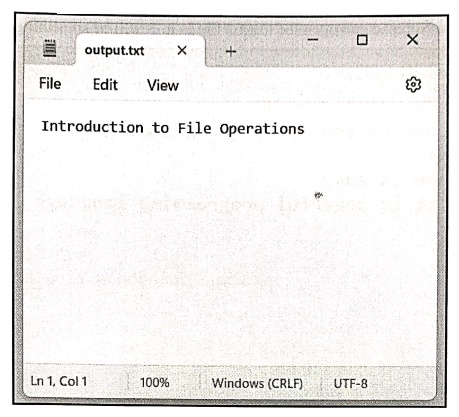
Step 3:
Open some text editor like notepad and check the contents of output.txt file
The writelines() method
The writelines() method is used to write a
list of strings to the file. Following program illustrates this
Example:6
Write a
Python program to write multiple lines to a text file using writelines()
method.
Solution :
fo=open('d:\\test.txt', 'wt')
lines=["Welcome to the Python programming\n","It
is fun\n",
"Python is
easy\n", "But it is powerful programming language"]
fo.writelines (lines)
fo.close()
Output
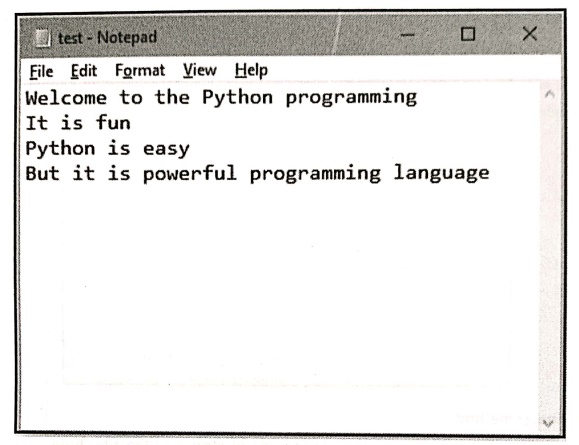
Now open the Notepad
and open the test.txt file in it. It will be something like this ‒
Appending the file
Appending
the file means inserting records at the end of the file.
For
appending the file we must open the file in 'a' or 'ab' mode.
For
example ‒
fo=open('d:\\test.txt','a')
fo.write("Python has a wide scope in future")
fo.close()
Output
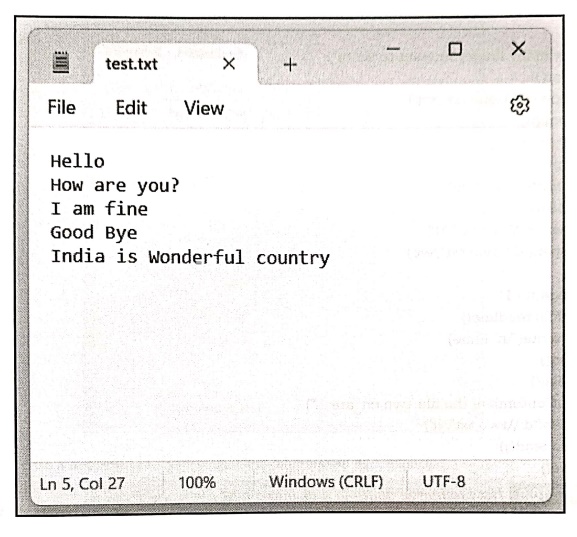
Just open the existing
d:\test.txt file to check the contents. It will be as follows ‒
Example:7
Write a
Python program to write n number of lines to the file and display all these
lines as output.
Solution :
print("How many lines you want to write")
n=int(input())
outFile=open("d:\\test.txt","wt")
for i in range(n):
print("Enter
line")
line=input()
outFile.write("\n"+line)
outFile.close()
print("The Contents of the file 'test.txt' are ...")
inFile=open("d:\\test.txt", 'rt')
print(inFile.read())
inFile.close()
Example:8
Write a
Python program to write the contents in 'one.txt' file. Read these contents and
write them to another file named 'two.txt'.
Solution :
print("How many lines you want to write")
n=int(input())
outFile=open("d:\\one.txt", 'wt')
for i in range(n):
print("Enter
line")
line=input()
outFile.write("\n"+line)
outFile.close()
inFile=open("d:\\one.txt", 'rt')
outFile=open("d:\\two.txt","wt")
i=0
for i in range(n+1):
line‒inFile.readline()
outFile.write("\n"+line)
inFile.close()
outFile.close()
print("The Contents of the file 'two.txt' are...")
inFile=open("d:\\two.txt","rt')
print(inFile.read())
inFile.close()
Example:9
How to
merge multiple files into a new file using Python.
Solution :
one = two ="'
fp=open('d:\\first.txt','rt')
one = fp.read()
fp=open('d:\\second.txt','rt')
second = fp.read()
one+= "\n"
one+= second
fp = open('d:\\third.txt','wt')
fp.write(one)
fp.close()
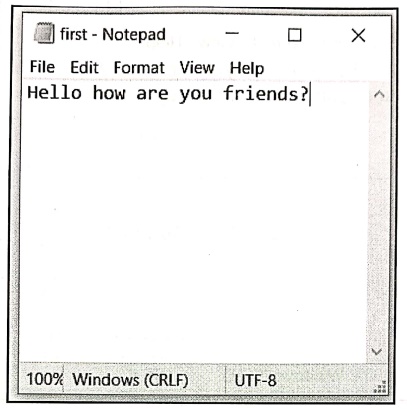
Step 1:
Create a first.txt file using some text‒editor like Notepad.
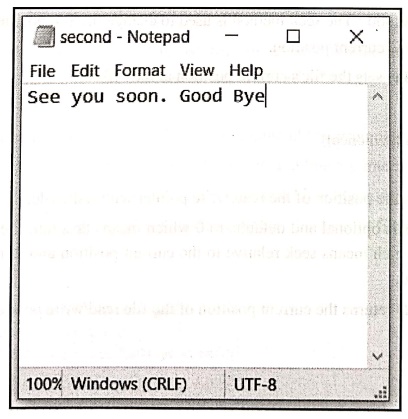
Step 2:
Create a second.txt file using some text‒editor like Notepad.
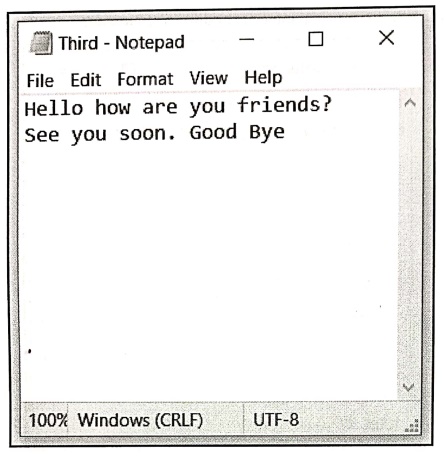
Step 3:
Now open the third.txt file using
some text‒editor. It will be as follows ‒
5. File Positions
The
seek and tell method: The seek
method is used to change the file position. Similarly the tell method returns
the current position.
The
method seek() sets the file's
current position at the offset.
Syntax
fileObject.seek(offset[,
whence])
Where
• offset ‒ This is the
position of the read/write pointer within the file.
• whence ‒ This is
optional and defaults to 0 which means absolute file positioning, other values
are 1 which means seek relative to the current position and 2 means seek
relative to the file's end.
The
method tell() returns the current
position of the file read/write pointer within the file.
Syntax
fileObject.tell()
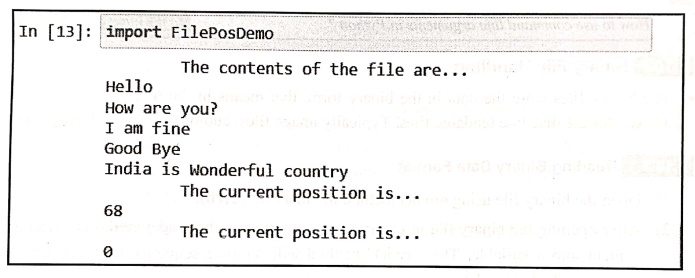
Programming example
inf=open('d:\\test.txt','rt')
print("\tThe contents of the file are...")
print(inf.read())
print("\tThe current position is...")
print(inf.tell())#get current position of file
inf.seek(0) #moves the file cursor to initial position
print("\tThe current position is...")
print(inf.tell())#get current position of file
Output
In [13]: import FilePosDemo
The contents of the
file are...
Hello
How are you?
I am fine
Good Bye
India is Wonderful
country
The current position
is...
68
The current position
is...
0
6. Command Line Arguments
In
Python the sys module is used to use
the command line arguments. There are three important steps to be followed
while accessing the command line arguments.
1.
Import the sys module.
2.
We can use sys.argv for getting the
list of command line arguments.
3.
The len(sys.argv) gives a total
number of command line arguments.
The
Python program illustrating the access to command line arguments is as given
below.
Step 1:
Write a Python script as follows. Here the name of the script file is CmdLine.py
CmdLine.py
import sys
print("Number of arguments: ",len(sys.argv))
print("Argument List: ",str(sys.argv))
print("The name of this program is:
",str(sys.argv[0]))
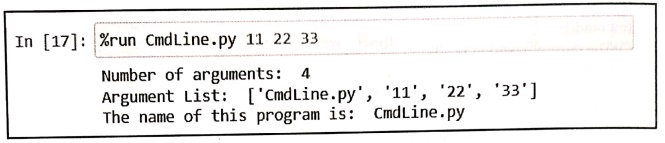
Step 2:
The command to run the command line argument program use the %run command as follows ‒
In [17]:
%run CmdLine.py 11 22 33
Number of arguments: 4
Argument List: ['CmdLine.py', '11', '22', '33']
The name of this program is:
CmdLine.py
7. Binary File Handling
•
The binary files store the data in the binary form, that means in the form of
0's and 1's. These files are machine readable files. Typically image files,
audio files are the binary files.
1. Reading Binary Data Format
1)
Open the binary file using open()
method in binary mode(rb).
2)
After opening the binary file in binary mode, we can use the read() method to
read its content into a variable. The" read()" method will return a
sequence of bytes, which represents the binary data.
3)
Process the data based on the requirements.
4)
Finally close the file using close() method.
Python
code
# Opening
the binary file in binary mode as rb(read binary)
f = open("test.zip", mode="rb")
# Reading
file data with read() method
data = f.read()
# Finding
the Type of data
print(type(data))
#
Printing our byte sequenced data
print(data)
# Closing
the opened file
f.close()
2. Writing to Binary File
•
We can write the bytes to the file using write()
method. Following code illustrates the write operation
Python
code
data = b'\x21'
# Open
file in binary write mode
binary_file = open("test.txt", "wb")
# Write
bytes to file
binary_file.write(data)
# Close
file
binary_file.close()
Review Question
1. How to use command
line arguments in Python?
Python for Data Science: Chapter 2: Functions and Files : Tag: Computer Programming, Python, Data Science : - Python: Working with Files
Python for Data Science: Chapter 2: Functions and Files
Under Subject

Python for Data Science
AD25201 2nd Semester AIDS Dept | 2025 Regulation | 2nd Semester 2025 Regulation
Related Subjects

English Essentials II
EN25C02 2nd Semester | 2025 Regulation | 2nd Semester 2025 Regulation

Tamils and Technology தமிழர்களும் தொழில்நுட்பமும்
UC25H02 2nd Semester | 2025 Regulation | 2nd Semester 2025 Regulation

Linear Algebra
MA25C02 2nd Semester | 2025 Regulation

Applied Physics (CSIE) II
PH25C03 2nd Semester AIDS, CSE, IT, CSE(CY) Dept | 2025 Regulation | 2nd Semester 2025 Regulation
Digital Principles and Computer Organization
CS25C06 2nd Semester AIDS, CSE, IT, CSE(CY) Dept | 2025 Regulation | 2nd Semester 2025 Regulation

Basic Electrical and Electronics Engineering
EE25C01 2nd Semester | 2025 Regulation | 2nd Semester 2025 Regulation
Python for Data Science
AD25201 2nd Semester AIDS Dept | 2025 Regulation | 2nd Semester 2025 Regulation

Re-Engineering for Innovation
ME25C05 2nd Semester | 2025 Regulation | 2nd Semester 2025 Regulation
Python for Data Science - Laboratory
AD25201 2nd Semester AIDS Dept | 2025 Regulation | 2nd Semester 2025 Regulation